How To Set VAT-rates
To set a country-specific VAT rate in T-Selector, open the app dashboard, go to “VAT Rates”, click “Add VAT Rate”, pick the country, choose “Store Wide Tax”, enter the rate, and submit. Repeat for every country you sell to. The whole process takes under a minute per country.
T-Selector uses these rates to show correct prices with and without VAT in your storefront, so the toggle always reflects what a customer in that country actually pays. If you sell across the EU, each destination country can have its own rate — Sweden 25%, Germany 19%, and so on. The current rates for every member state are listed in the European Commission’s VAT rates overview.
Setting a VAT rate, step by step
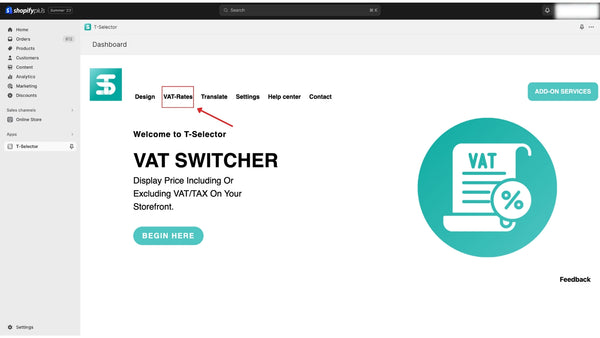
Step 1. When you are in the dashboard, click on “VAT Rates”.
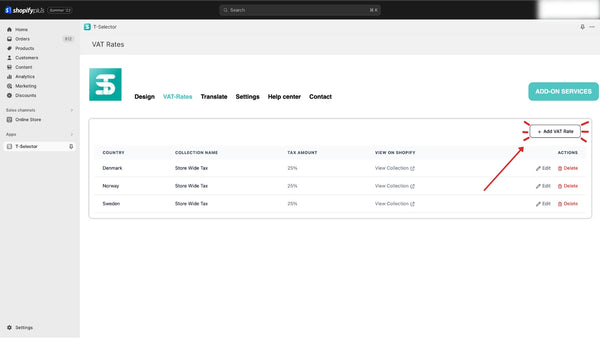
Step 2. Start by clicking on “Add VAT Rate”.
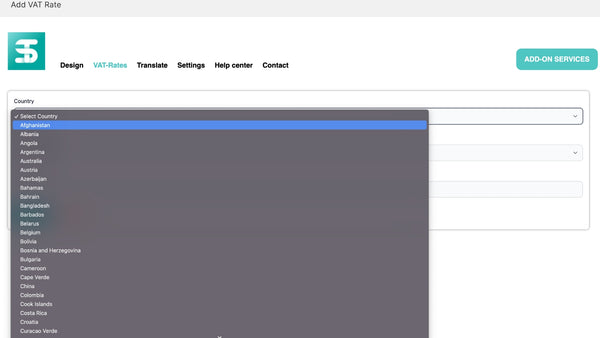
Step 3. Select the country you want to set a VAT rate for.
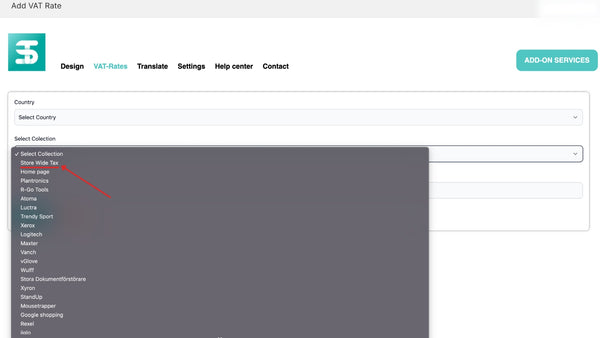
Step 4. Select “Store Wide Tax”.
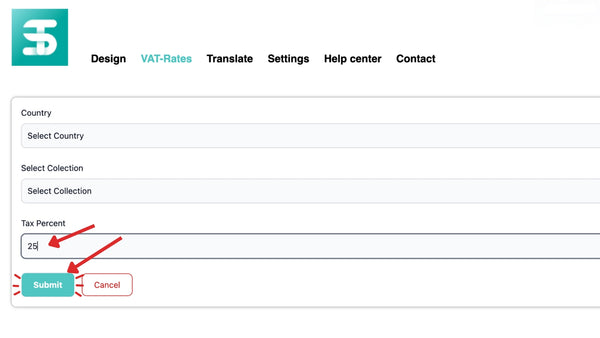
Step 5. Type the VAT / tax rate for the country you have selected and click submit.
Optional step 6. Repeat steps 2 to 5 if you want to add multiple countries.
Product-specific rates
Store-wide tax covers the normal case where everything you sell shares one rate per country. If some products carry a reduced rate — books, food, children’s items in some markets — T-Selector also supports product-specific tax rates via Shopify tags, so individual products can override the store-wide rate.
Related reading
Setting the rates is half the job; showing the right price to the right customer is the other half. Our guide on how to display prices with and without VAT on Shopify covers the storefront side — dual pricing, B2B exemption and Google Shopping.
Need help? Read the T-Selector Help Center or email us.